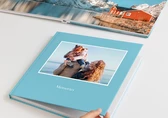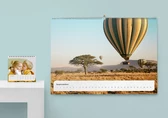
To design your photo products in Photoshop, you can download Photoshop templates specifically created for each product. These templates are designed with the exact dimensions of the photo product and include guidelines to assist you in your design process. You can find the PDF files for each product in the Professional zone of the respective category. First, select the product you want to design within that category, and a list of available formats will be displayed. You can then download the desired template to begin your design.

All PSD files include bleed guidelines, which you should consider when placing elements in your design. Make sure to position your elements at a sufficient distance from the bleed area. For multipage products like the Photo Book, you’ll find guidelines that indicate different sections of the book. The cover PSD is divided into three areas:

The PSD template for the inside pages is divided into two sections:

Please note that due to material limitations, special covers only allow text and clipart, not image files. The only exceptions are white leatherette and acrylic or brushed metal print covers for Professional Line photo books. If you choose a special cover such as Natural Linen, it must be designed using our online designer. PDF uploads are not supported for Special Covers. This is to ensure optimal reproduction on the final product.
When creating a multipage product such as a Photo Book or Calendar, it's important to pay attention to file naming. To ensure proper page order when uploading, it's crucial to rename your pages using sequential numbers (01, 02, etc.). This will automatically arrange the pages of your multipage product.
You can upload JPG files using the PDF Upload mode. For optimal results, we recommend saving your files in JPG format with the highest possible quality and selecting the sRGB IEC61966-2.1 ICC profile checkbox.
For exporting your design as a PDF with optimal results, we recommend using the Saal digital preset. You can download the job options file here. After downloading and unzipping the file, open Photoshop and go to Edit in the top menu, then click on Adobe PDF Preset. A new window will open where you can click on the Load button and select the downloaded preset file. Once selected, click on Save as… and give it a name to save.

When saving your files as a PDF, choose the Saal Digital Preset that you saved in the Save Adobe PDF window.

If you’re not using the Saal digital preset, ensure a few details in the Adobe PDF settings. Set Compression to JPEG with Maximum quality. In the Output section, change the colour conversion to Convert to Destination and choose RGB Colour Space — sRGB IEC61966-2.1 in the Destination box.
You can save multiple documents as a single multipage PDF file. Go to File > Automate > PDF Presentation. In the Output options dialogue box, select the Multipage Document checkbox. In the Source files section, add the files you want to include in your multipage PDF. Selecting Add open files will include all currently opened files in Photoshop. You can also use the Browse button to add saved files. Arrange the pages in the desired order, ensuring the cover is placed first. Finally, click the Save button to create the multipage PDF.


Store, share, and sell your photos with ease. We go beyond software; we’re your all-in-one fulfilment and lab partner. With marketing automation, order management, and analytics, it’s everything you need to succeed online.

Erhalte exklusive Preisvorteile und Gestaltungstipps. Mit der Anmeldung nimmst du unsere Datenschutzerklärung zur Kenntnis. Eine Abmeldung ist jederzeit möglich.




Your language setting does not match the language of this website. Please choose:
Your language setting does not match the language of this website. Please choose:

 Change your country