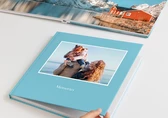
When you create a Photo Book using the Online Designer, you can choose from different design modes. These modes define how your Photo Book is initially created and offer different levels of automation to suit your time, experience, and design preferences. Design modes are also available for Calendars.
After selecting your product and configuring the material options, you will be presented with the following design modes:
One Minute Photo Book: Automatically designs your Photo Book and allows you to refine the result afterwards.
Pre-designed: Available when selecting a glossy or matte cover. This mode provides themed templates with predefined layouts, ready for you to fill with images and text.
Empty template: Starts with blank pages so you can place images and elements manually.
PDF Upload: Allows you to upload a Photo Book that has already been designed using external software. For more information, visit the Professional Zone.

Regardless of the design mode you choose, once the project is opened in the Designer you can activate the Auto Layout function. This option is available in the top left corner of the Designer. When Auto Layout is enabled, images are automatically adapted to the pages as you add or remove them. The layout dynamically adjusts to the available space, reorganising existing images and elements to maintain a balanced and consistent design. This makes Auto Layout especially useful for quickly designing your Photo Book by simply adding content. Auto Layout can be activated or deactivated at any time.
This mode is ideal if you want to create your Photo Book quickly and easily. When selecting this mode, a window will appear showing various design lines. You can filter them by category using the options in the top left corner. Each design line applies cliparts and backgrounds to your Photo Book to create a cohesive style. Click on one to select it.

Next, select the photos you want to include in your Photo Book. Click Upload images to add images from your local device or select them from other online sources. Uploaded images will appear in a menu where you can review them before continuing. It is important to check the order of the images, as this will determine how they are placed in the Photo Book. You can sort images by name or date using the corresponding options in the left column. You can add additional images using the Add more images button or remove images by selecting them and clicking the Remove images button in the top right corner.
For convenience, you can also use the Grouping option to group images by date or location. If you want the software to automatically detect similar images and avoid using them, activate the checkbox Stack similar images. Once your selection is complete, click Continue.

A window will then suggest a recommended number of pages based on the number of selected images. You can adjust the number of pages manually using the dropdown menu at the bottom. Pages can also be added or removed later in the Designer. After setting the desired number of pages, click Select.
The Online Designer will automatically create your Photo Book according to your settings and display all pages in overview mode. Review each page carefully to ensure everything looks as expected. To switch to single-page view, click the single-page view icon in the top right corner or click the edit icon on any page.

All objects and images can be modified, removed, or replaced. You can add text using the Add text button in the top menu or by selecting a layout containing text from the Layouts column on the right. You can also change the design line at any time by opening the Design line menu and selecting a different one.
Use the Pages menu at the bottom to navigate through the Photo Book. Pages highlighted in red indicate that they have not yet been reviewed.
This mode is available for hardcover Photo Books with a glossy or matte cover. It provides professionally designed templates organised by theme, allowing you to quickly create your Photo Book by inserting your own images and text.
Templates are grouped into categories, and each template displays information about the number of pages and images it contains. You can preview examples of each template by browsing the thumbnails and using the menu options to view sample layouts before making a selection. Templates are fully editable once opened in the Designer.

After selecting a template, it will open in the Designer. The pages are already designed with empty image and text boxes for you to fill in, with predefined layouts containing empty image and text boxes.

Simply drag images into the image boxes and enter your text where required. All elements can be modified, removed, or replaced to fully customise the design to your needs.
In this mode, the Photo Book is designed page by page starting from blank pages. After selecting this mode, choose the number of pages you want. You can add or remove pages later if needed. Click Select to continue.

To add photos, click Upload images in the left column and select images from your local device or an online source. Once uploaded, the images will appear in the left column, ready to be placed in your Photo Book. For more information, see the Add and edit images article.
Once images are available, there are two ways to place them into your Photo Book:
Select one or more images from the left column. A menu will appear at the bottom with the Insert image option. Clicking this will place the images using a suggested layout. You can insert multiple images at once, and the Online Designer will automatically adjust the layout. You can later select a different layout or change the design line if desired.

When Auto Layout is disabled, dragging an image from the left column will display three placement options. Drag the image onto the desired option:
1. New layout: Inserts the image using a suggested layout, adapting existing images and elements on the page. You can later choose a different layout from the Layouts menu.
2. As background: Places the image as a background, covering both pages completely.
3. Add without changing the layout: Places the image without modifying existing elements and without being cut. The image must then be positioned manually or adjusted using a layout.
If you drag the image directly onto the page, it will be placed exactly where you drop it without affecting other elements.

If images are already placed, you will also see the Replace image option. Dropping an image onto this option will replace the existing image while keeping the layout unchanged.

It is possible to display an overview of all pages at once. In the Designer, click the overview icon in the top right corner. All pages in the project will be displayed, allowing you to review the entire Photo Book at a glance and rearrange pages if needed. To move a page, click and hold the move icon at the top of the page and drag it to the desired position.

From this view, you can also add new pages by clicking the plus icon displayed between the pages, delete a page by clicking the bin icon at the bottom of the page, or duplicate a page along with its content using the copy icon. To return to the single‑page view, click the single view icon in the top right corner or select the edit icon (pencil) on the desired page.
It is possible to add images, text, fill boxes, backgrounds, and clipart to glossy, matte, and white leatherette covers. However, for other special covers, such as natural linen, only text and clipart can be added; image files cannot be used due to the nature of the material.
Alternatively, you can choose a Professional Line Photo Book with an acrylic or Brushed Metal Print cover to fully customise your cover.

Erhalte exklusive Preisvorteile und Gestaltungstipps. Mit der Anmeldung nimmst du unsere Datenschutzerklärung zur Kenntnis. Eine Abmeldung ist jederzeit möglich.




Your language setting does not match the language of this website. Please choose:
Your language setting does not match the language of this website. Please choose:

 Change your country